Service Call
 Managed Print


Why Your Prints Are Fading: Causes & Fixes
Home printers can be fickle machines. One day, you’re printing off a page no problem, and it looks like it was written in pencil! Then the next day, you end up with a faded, streaky, grey mess…
So what’s going on?
An empty cartridge isn’t always to blame for fading prints. Your print settings, paper, printhead, toner, or even the ink itself could be causing the problem. Thankfully, you can check a few simple things to get crisp, clean prints again.
Here’s how to work out why your prints are fading and what you can do about it.
Why Is My Printing Faded?
Faded printing generally means your printer isn’t putting enough ink or toner onto the page. What causes this depends on whether you’re using an inkjet or laser printer. For an inkjet printer, the problem could be as simple as low ink or as fiddly as a partially clogged printhead.
Laser printers have their own set of potential culprits, including low toner and worn printer components. Both printer types can be affected by several potential issues. Some of the most common causes of faded prints include:
- Low ink or toner
- A dried-out or faulty cartridge
- Clogged printhead nozzles
- Incorrect paper settings
- Unsuitable or poor-quality paper
- Uneven toner distribution
- A worn drum or other printer component
The good news is that most of these problems are relatively easy to check and resolve.
How to Fix Faded Printing
Before you assume your printer has given up, work through these troubleshooting steps.
1. Check your ink or toner levels
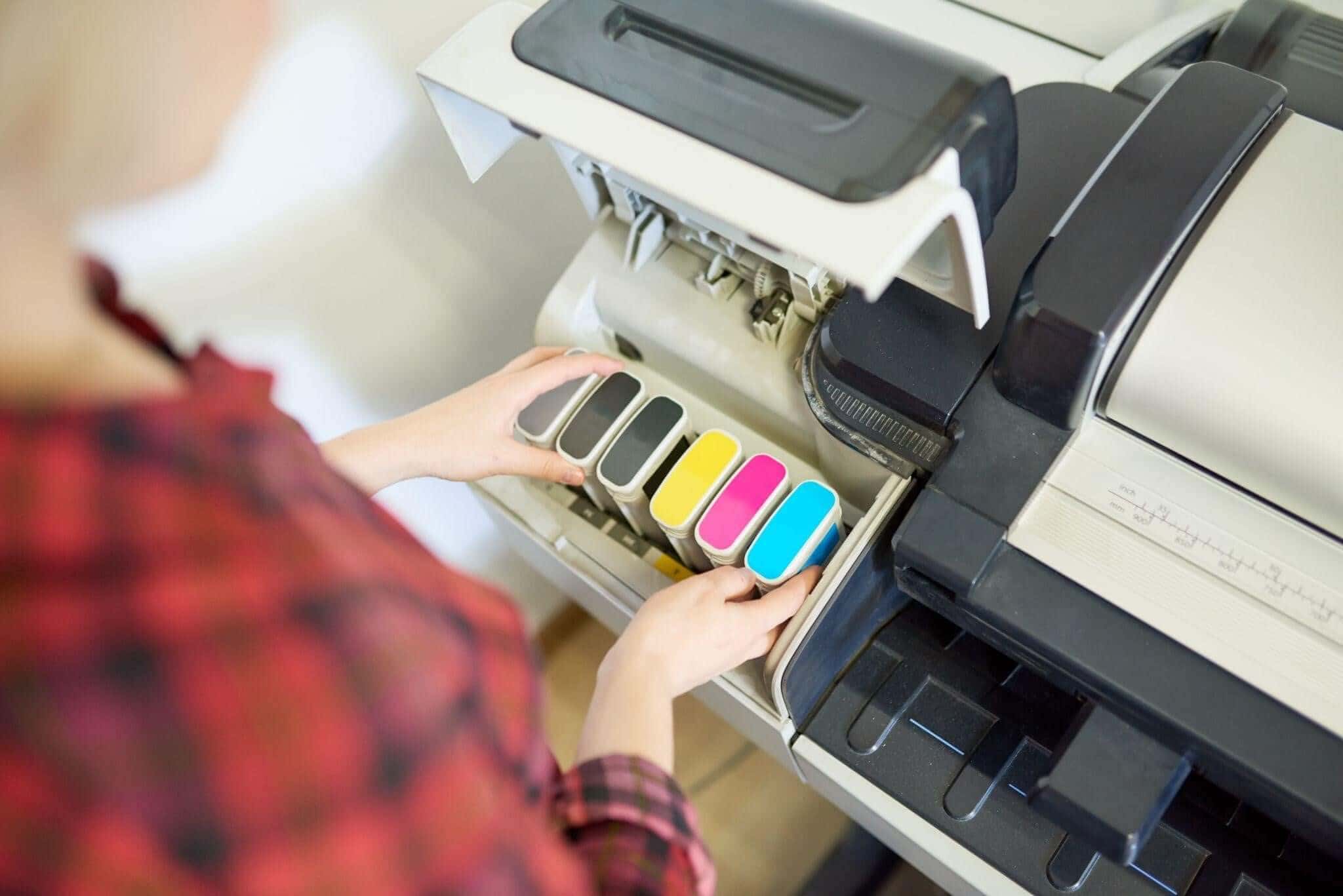
It might sound obvious, but start by checking your cartridge levels. If your ink or toner cartridge is running low, your printer may start producing increasingly faint text and images. Some colours may also disappear before others, leaving your documents less colourful than intended.
If your cartridge is genuinely empty or nearly empty, it’s probably time to replace and dispose of it. You can browse our range of ink cartridges, including cheap compatible ink cartridges for a wide range of printers.
2. Check your print quality settings
Sometimes the problem isn’t actually your printer at all! Rather, the problem may be the settings you’ve selected. Many printers have Draft, Economy, or similar modes designed to use less ink or toner; these can be handy for printing rough internal documents, perhaps, but less helpful when you’re trying to print something that people actually need to read.
Check your printer settings and switch from Draft or Economy mode to Standard or High/Best Quality, then print another page and see whether there’s a difference.
3. Run a printhead cleaning cycle
If you’re using an inkjet printer, a clogged printhead could be causing faded prints. Ink can dry up around the tiny nozzles that spray ink onto the page, particularly if the printer isn’t used regularly. When some nozzles become blocked, ink may not reach the paper evenly, obscuring the final results.
Most inkjet printers have a built-in printhead cleaning function. Run the cleaning cycle according to your printer’s instructions, then print a test page.
Remember: cleaning cycles use ink! Don’t run them repeatedly hoping for a miracle if the first attempt hasn’t fixed the problem.
4. Print a nozzle check or test page
A print nozzle check can help you determine whether your printhead is actually the problem by printing a test page. The test pattern should show whether all the nozzles are working correctly. Gaps, broken lines, or missing colours can indicate a blockage.
If the test page shows obvious gaps, try another cleaning cycle if your printer recommends it. If the problem persists, then you may need to inspect the cartridge or have the printer serviced.
5. Check the paper you’re using
Your paper may be the problem! Inkjet printers are designed to work with particular types of paper, and using unsuitable, damp or poor-quality paper can affect how ink is absorbed. For example, if you’ve loaded photo paper but the printer thinks it’s using standard A4 stock, it may apply too much ink and mess up the finish.
- Check the selected paper type
- Use fresh, dry paper
- Ensure the paper is suitable for your printer
- Try a different paper if the problem continues
Check the paper type selected in your printer settings to see if this resolves the issue.
When Should You Replace Your Ink or Toner Cartridge?
Sometimes, despite your best troubleshooting efforts, the printer cartridge really is the problem. If you’ve worked through the obvious causes and your printer is still producing pages that look more grey than black, a fresh cartridge is worth trying.
Consider replacing your ink or toner cartridge if…
- The ink or toner cartridge is empty
- The cartridge is old or has been stored incorrectly
- The cartridge is damaged or leaking
- The problem started immediately after installing a cartridge
- Your printer continues producing faded pages after cleaning
FAQs
Here are some frequently asked questions we receive about fixing fading prints.
Why does my printer print faded even with a full ink cartridge?
A full cartridge doesn’t necessarily mean ink is reaching the page properly. A clogged printhead, dried ink, incorrect print settings, unsuitable paper, or a faulty cartridge can all cause faded prints even when the printer reports a full ink level.
Can a clogged printhead cause faded prints?
Yes. Blocked or partially blocked printhead nozzles can stop ink from being deposited evenly onto the page. This can result in faint areas, missing colours, gaps or streaks. Running the printer’s built-in cleaning cycle can often help clear minor blockages.
Does using compatible ink cartridges cause more fading?
Not necessarily. A properly designed, compatible cartridge should produce high-quality prints when it’s compatible with your printer. If fading begins after installing a compatible cartridge, check the cartridge model, installation and printer settings before assuming compatibility is the problem.
Why is my laser printer printing light or streaky?
Low toner, uneven toner distribution, incorrect print settings, or a worn drum can all cause light or streaky prints. Check your toner level and print settings first. If replacing the toner doesn’t solve the issue, the printer may need further maintenance.
How often should I run a printhead cleaning cycle?
Only when necessary. Printhead cleaning cycles use ink, so running them repeatedly when your printer is working normally can waste ink from your cartridge. If print quality starts to deteriorate, run a nozzle check first, then clean the printhead if the results indicate a blockage.
Will changing the paper type stop my prints from fading?
It can help if you’re using unsuitable paper or have selected the wrong paper type in your printer settings. Try using fresh paper that’s compatible with your printer, and make sure the paper setting matches the paper you’re actually using.
Get Your Printer Printing Clearly Again with CartridgesDirect
Faded prints don’t always mean it’s time for a new cartridge. Check your ink or toner levels, print settings, printhead, and paper first. Sometimes, a quick adjustment is all it takes to get your printer producing crisp, clear pages again.
But if your cartridge has run its course, don’t put up with faded, streaky prints. CartridgesDirect offers a wide range of printer cartridges online, including genuine and compatible ink and toner cartridges, as well as options for popular brands like HP. Browse our full range, find the right cartridge for your printer, and get your prints looking their best again.