Service Call
 Managed Print

How To Clean Printheads: Expert Tips & Tricks
Nothing is more annoying than being prepared to print an important document only to have it appear as a jumble of streaks, faded patches, or worse—an entirely blank page. What could be wrong if your printer worked fine just the other day, and you even recently changed the ink cartridges?
The problem may actually lie with your printhead. Giving your printer’s printhead a thorough cleaning can often be a quick fix for problems like this.
You can either use the software that comes with your printer or take a more hands-on approach by cleaning it by hand. Here are some expert tips and tricks for how to clean printheads
What Is a Printhead & Why Is It Important?
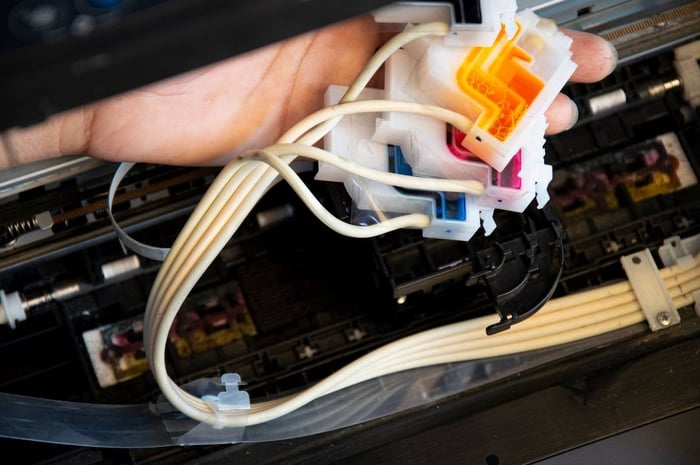
The part that holds the ink cartridges is called the printhead. The printhead is one of the most important parts of your home or office printer, if not the most important part.
The printhead, usually located under the printer’s cover, applies ink to the paper. Over time, dried ink can build up and block the printhead, worsening print quality.
Nothing will print if the printhead isn’t working, so it’s important to ensure your printhead is not only working but also well-maintained and cleaned regularly.
Why Printhead Maintenance is Necessary
There are many reasons to regularly clean the printhead and perform other maintenance on your printer. Here are some of the most important reasons to keep your printhead in good shape:
Ensure the print quality is always the same
Makes your printer last longer
Keeps the nozzles free of extra ink, which makes the ink work better
Prevents expensive repairs or replacements
You shouldn’t use your printer for long periods of time without maintenance, just like you shouldn’t drive your car for thousands of miles without changing the oil. Taking care of your printer will make it last longer and keep you from dealing with streaky or blank prints when you least expect them.
Signs You Need to Clean Your Printhead
There are some common signs indicative of a messy or faulty printhead. Watch for these indicators that it’s time to clean your printhead:
- Streaky or faded prints
- Missing text or images in your printouts
- Printer software indicates full ink cartridges, but no ink is transferring to the paper
- Blurry documents or images
Before cleaning, check the nozzle to make sure that the printhead is really the problem. You can usually do this from your computer or the printer's control panel.
If the nozzle check shows a problem, clean the print head to fix it.
How to Clean Printheads
There are two primary methods for cleaning an HP printhead: using software on your printer or PC, or manually by removing the printhead. Here are step-by-step breakdowns of both options.
Cleaning the Printhead Through Software
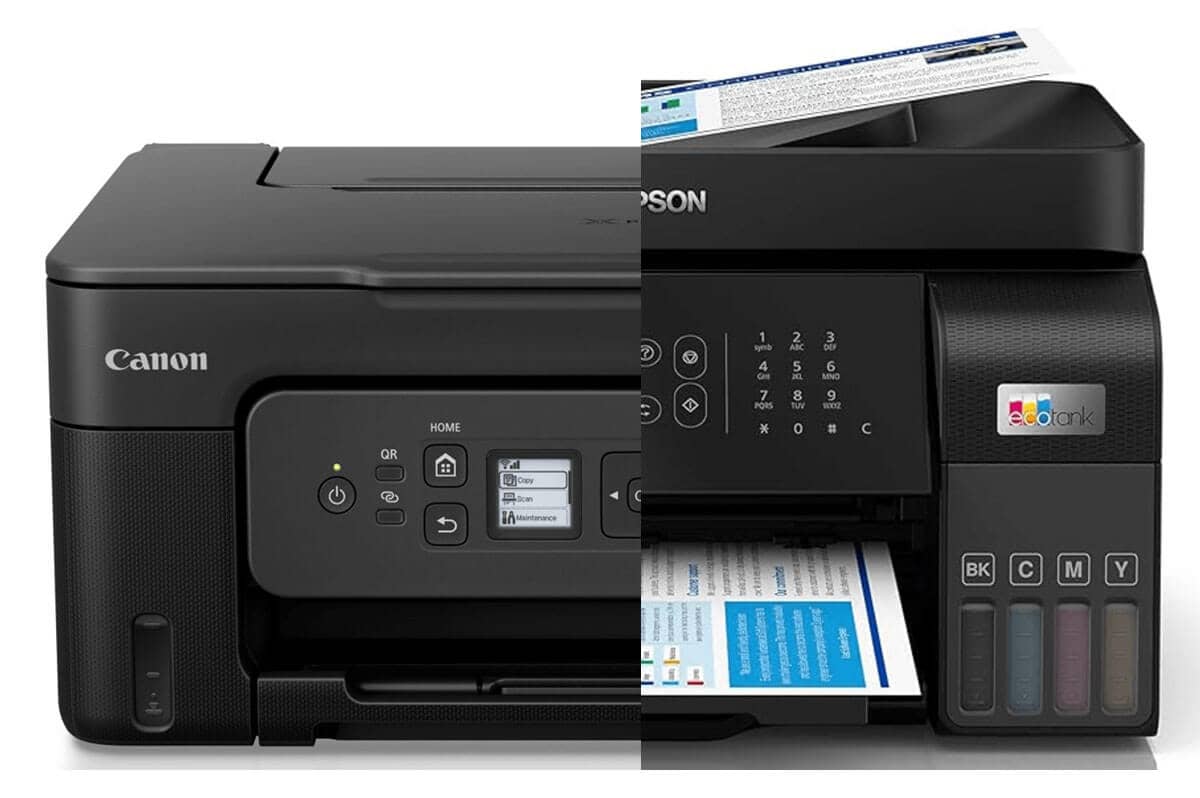
The first and safest thing to do is always to let the printer try to fix itself before you get to work on it. Most new inkjet printers from companies like HP, Canon, and Epson all come with a built-in cleaning feature.
This process doesn’t require any work on your part and is great for clearing up small clogs.
On the Printer's Control Panel
Many models with an LCD screen have a menu for “Maintenance”, “Settings”, or “Tools”. Just have a poke around in there until you find an option like “Clean Printhead” or “Head Cleaning”.
Through Your Computer's Software
If your printer is a more basic model without a screen, then you’ll need to do it from your computer or via an app. On a Windows PC, head to Settings > Devices > Printers & Scanners, select your printer, and look for “Printing Preferences” or “Maintenance” tabs.
On a Mac, you’ll find it under System Settings > Printers & Scanners.
Once you kick off the cycle, the printer will whir and click away for a minute or two. It’s a completely automated process, so you can just let it do its thing.
Pro tip: Don’t go overboard! Each time you clean, you use a lot of ink, sometimes as much as printing a few full-colour photos.
It’s okay to run the first cycle again if it doesn’t fix the problem. But running it more than twice in a row probably won't help and will just use up your ink and toner cartridges.
Cleaning the Printhead Manually
If the software method doesn’t resolve the issue, then you should try cleaning the printhead manually. Assuming you aren’t experiencing printer cartridge issues, then cleaning the printhead should help.
Try following this manual cleaning process:
Step 1
Turn on your printer and open the access door.
Step 2
Wait for the cartridge carriage to centre, then unplug the printer.
Step 3
Carefully remove each ink cartridge.
Step 4
Clean the cartridge contacts with a lint-free microfibre cloth.
Step 5
Gently clean the printhead contacts inside the printer with a soft, slightly damp cloth to dab away any excess cleaning solution and absorb ink.
Step 6
Allow components to dry for 10 minutes before reassembling.
Step 7
Plug in the printer and run the initialisation process.
Critical tip: Whatever you do, DO NOT touch the gold or copper-coloured electronic contacts on the back of the printhead or the nozzle plate on the bottom. The oils from your skin can mess with the electrical connection and cause permanent damage.
Materials Needed for Manual Cleaning
You don’t need to be a professional to clean a printhead; you just need some essential materials on hand with you. For effective manual printhead cleaning, be sure to gather these supplies:
Lint-free microfibre cloths – These won’t leave fibres behind that could further clog the printhead.
Distilled water – Tap water contains minerals that can damage printheads.
Shallow dish – For soaking particularly stubborn clogs.
Printer cleaning solution – If available, use solutions specifically designed for printheads.
Rubber gloves – To protect your hands from ink stains.
Paper towels – To protect your work surface.
Important tip: Handle printheads and cartridges gently to avoid causing damage. Use only water or approved printhead cleaning solutions.
Keep Your Printer Performing at Its Best
Cleaning your printhead doesn’t need to be complicated, but it does make a big difference! Whether you’re running a quick cleaning cycle through your printer’s software or carefully tackling a manual clean, a little maintenance goes a long way in keeping your prints sharp, consistent, and reliable.
By staying on top of printhead care, you can avoid frustrating print issues, reduce ink waste, and extend your printer’s life. And if problems persist even after cleaning, it may be time to seek professional support to prevent further damage.
Need Help or Supplies? We’ve Got You Covered
If your printer still isn’t performing the way it should, or you’d rather leave it to the experts, our team is here to help.
CartridgesDirect offers reliable advice, quality cleaning solutions, and a wide range of genuine ink and toner to keep your printer running smoothly.
Get in touch today or browse our range online to find everything you need for better, hassle-free printing!
FAQs
What is a printhead and why is it important?
The printhead is the part of your printer that holds the ink cartridges and applies ink to the paper. It is one of the most important components of a home or office printer. Over time, dried ink can build up and block the printhead, worsening print quality. Nothing will print if the printhead isn't working, so keeping it well-maintained and regularly cleaned is essential.
What are the signs that my printhead needs cleaning?
Common signs that your printhead needs cleaning include: streaky or faded prints, missing text or images in printouts, printer software indicating full ink cartridges but no ink transferring to the paper, and blurry documents or images. You can confirm the issue by running a nozzle check from your computer or the printer's control panel.
How do I clean my printhead using software?
Most modern inkjet printers from brands like HP, Canon, and Epson have a built-in cleaning feature. On the printer's control panel, look for a 'Maintenance', 'Settings', or 'Tools' menu and select 'Clean Printhead' or 'Head Cleaning'. From a computer, go to Settings > Devices > Printers & Scanners on Windows, or System Settings > Printers & Scanners on a Mac, and look for a 'Maintenance' or 'Printing Preferences' tab. The process is fully automated. Note: avoid running the cycle more than twice in a row, as each cleaning cycle uses a significant amount of ink.
How do I clean my printhead manually?
To clean a printhead manually: (1) Turn on your printer and open the access door. (2) Wait for the cartridge carriage to centre, then unplug the printer. (3) Carefully remove each ink cartridge. (4) Clean the cartridge contacts with a lint-free microfibre cloth. (5) Gently clean the printhead contacts inside the printer with a soft, slightly damp cloth. (6) Allow components to dry for 10 minutes before reassembling. (7) Plug in the printer and run the initialisation process. Important: never touch the gold or copper-coloured electronic contacts or the nozzle plate, as skin oils can cause permanent damage.
What materials do I need to manually clean a printhead?
For effective manual printhead cleaning you will need: lint-free microfibre cloths (to avoid leaving fibres that could clog the printhead), distilled water (tap water contains minerals that can cause damage), a shallow dish for soaking stubborn clogs, a printer cleaning solution designed specifically for printheads, rubber gloves to protect your hands from ink, and paper towels to protect your work surface.
Why is regular printhead maintenance important?
Regular printhead maintenance ensures consistent print quality, extends the life of your printer, keeps the nozzles free of excess ink buildup, and helps prevent costly repairs or replacements. Neglecting maintenance can lead to streaky or blank prints and reduced printer performance over time.
What should I do if cleaning the printhead does not fix the problem?
If print quality issues persist after both software and manual cleaning attempts, it may be time to seek professional support to prevent further damage. A specialist can assess whether the printhead or other components need to be repaired or replaced.