Service Call
 Managed Print


Troubleshooting Common Printer Errors: Step-by-Step Guide
Desktop printers have a habit of acting up at the worst possible time, especially when you need them most. Whether it’s an unexpected bout of “offline” statuses, a job that won’t start, or pages that come out blank, these problems can appear more complicated than they are.
The good news is that most common printer errors aren’t caused by major faults, like ink smudges or broken parts. In many cases, they come down to simple connectivity issues, minor software glitches, or overlooked settings that can be resolved in just a few steps.
With a structured approach to troubleshooting, you can often identify the problem quickly and get your printer back to working order without needing professional support, so you’ll be back up and printing in no time!
First Things First
Before you get ahead of yourself and start trying to fix whatever is wrong with your printer, it’s worth checking the basics first to rule out any obvious issues. These simple hiccups can be resolved quickly without requiring any major troubleshooting.
Make sure your printer is turned on, all cables are securely plugged in, and the power supply is operational.
Check that the paper tray is properly loaded with the appropriate size and type of paper. Be sure to remove any paper jams or curled sheets.
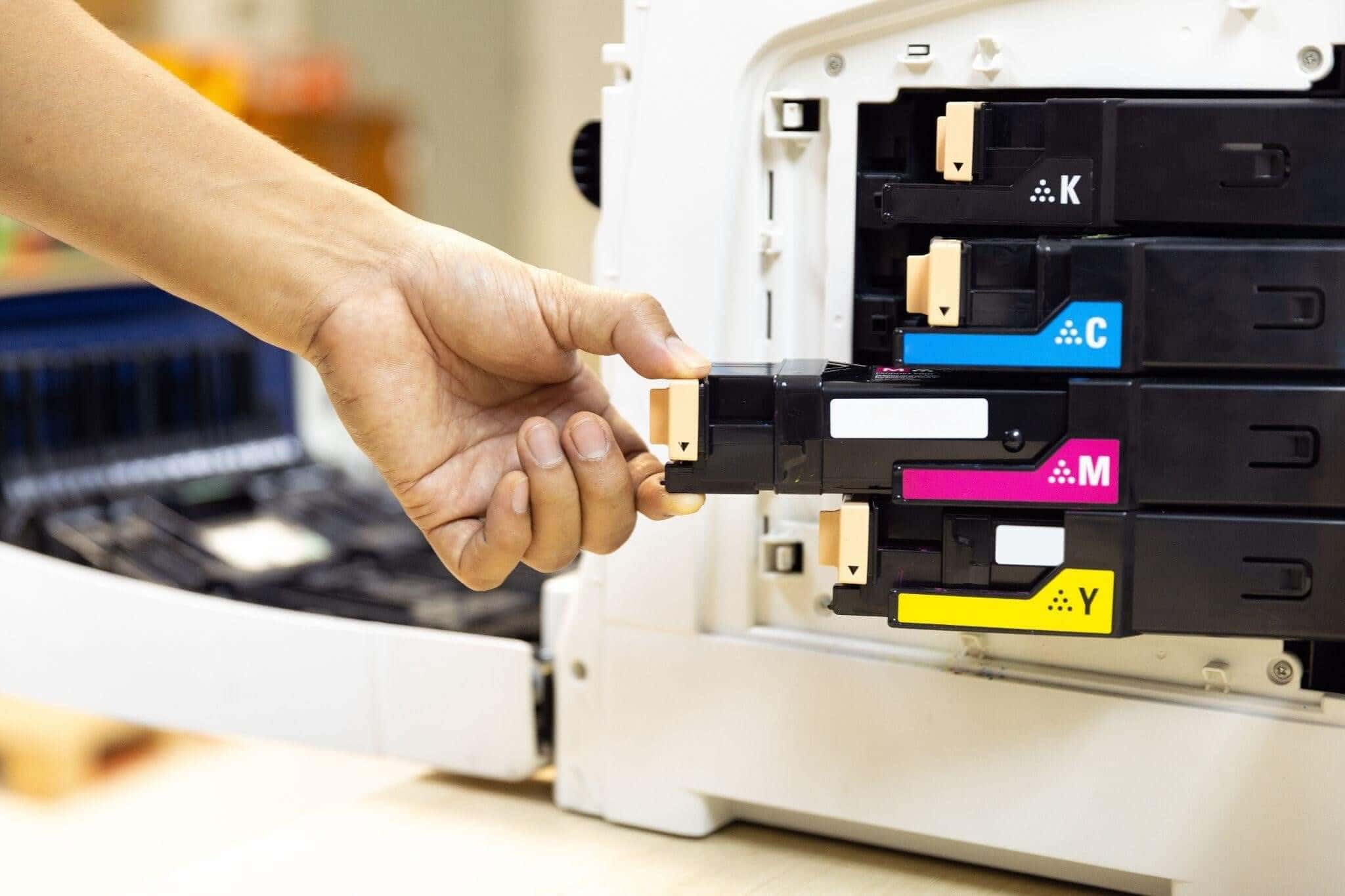
Confirm that your ink or toner cartridges are properly installed, have an adequate supply, and are compatible with your machine.
These are the simplest issues to rule out. If your printer still isn’t working after these preliminary checks, then it’s time to move on to troubleshooting.
Troubleshooting Common Printer Errors: Step-by-Step Guide
From persistent ERROR messages to blank pages, many common printing problems can be resolved by simple troubleshooting. Here is a step-by-step guide to basic printer troubleshooting.
1. Check your printer connection
One of the most common printer issues users encounter is a printer that is connected to power but won’t respond. This usually indicates a connectivity problem.
You’ll know it’s a connection issue if your printer status shows as “offline” on your computer or you get a “printer not found” error message.
Fixing printer connection problems
Restart your printer and computer — a simple reboot can sometimes clear temporary glitches!
Check network connections:
For USB or Ethernet printers: confirm the cable is properly connected.
For WiFi printers: ensure your device is on the same network as the printer.
3. Run a test print. Once reconnected, run a test print to confirm everything is working.
If you’re still having trouble, then the issue may be with your WiFi setup or something else.
2. Look for security or access lockouts
Some printers have built-in security settings that control who can print, scan, or access certain features. If your printer won’t work, the issue could be related to permissions or authentication rather than a hardware fault.
Managing security lockouts
Check whether your printer requires user authentication, like a PIN or password, before releasing jobs.
If you’re in a workplace, confirm you have the right permissions set by your IT administrator.
Try logging in through the printer’s control panel to see if access is restricted.
If you continue running into lockouts, it may be a network or policy setting that only your IT team can resolve. At this point, it’s best to escalate the issue to a support assistant rather than try to override it yourself.
3. Check the print queue
If your printer is not working properly, it’s always a good idea to check your print queue. Sometimes jobs get stuck, duplicated, or stalled, preventing new tasks from going through.
In more technical cases, the problem could be with the print spooler (the software service that manages your print jobs). You’ll know it’s a queue or spooler issue if documents show as “pending” or “error” in the queue, or jobs disappear from your screen but nothing prints.
Fixing print queue and spooler problems
Clear the print queue by opening it on your computer. Cancel all the documents and restart the print job.
Restart the spooler service:
Windows: Press Windows + R and type “services.msc”, locate Print Spooler, then right-click and select Restart.
Mac: Go to System Preferences > Printers & Scanners, select your printer, and click Open Print Queue to delete or pause jobs.
Test print again. After clearing the queue, try sending a single-page job to see if the issue is resolved.
If errors persist, then the root cause may be either an outdated driver or a software compatibility issue.
4. Update your software and drivers
Printer drivers act as the link between your computer and the printer. If those drivers are outdated or don’t match your operating system, the printer won’t be able to interpret print jobs correctly.
It can cause certain features, such as duplex or colour options, to stop working. Or, explain why the printer may stop working altogether after a Windows or Mac update.
This will usually bring up error messages like “Driver unavailable”, “Unsupported format”, or “Incompatible printer driver”.
Fixing software compatibility problems
Download the latest drivers from your printer manufacturer’s website and install them on your computer.
Make sure your computer’s operating system is up to date.
After updating, restart your printer and computer to reset the connection.
If you’re still getting the same errors, the driver may be corrupted or incompatible with your system. At this stage, it’s best to reach out to IT support or a professional printer technician.
5. Review print settings and alignment
Crooked text, clipped margins, or pages that don’t look like what you see on screen often point to a printer setting or alignment problem. These errors aren’t usually a sign of hardware failure but rather the result of incorrect page setup or a printer that needs its printhead recalibrated.
Fixing print settings
Double-check your print preferences before sending a job. Paper size, orientation, and scale are common culprits.
Run an alignment or calibration test page from your printer’s control panel.
Use the manufacturer’s software to reset alignment if available.
Keep Your Printer Running Smoothly
While many printer issues can be resolved with a bit of troubleshooting, ongoing performance often depends on using the right supplies and properly maintaining your device. Low-quality or incompatible cartridges can lead to recurring errors, poor print quality, and unnecessary frustration over time.
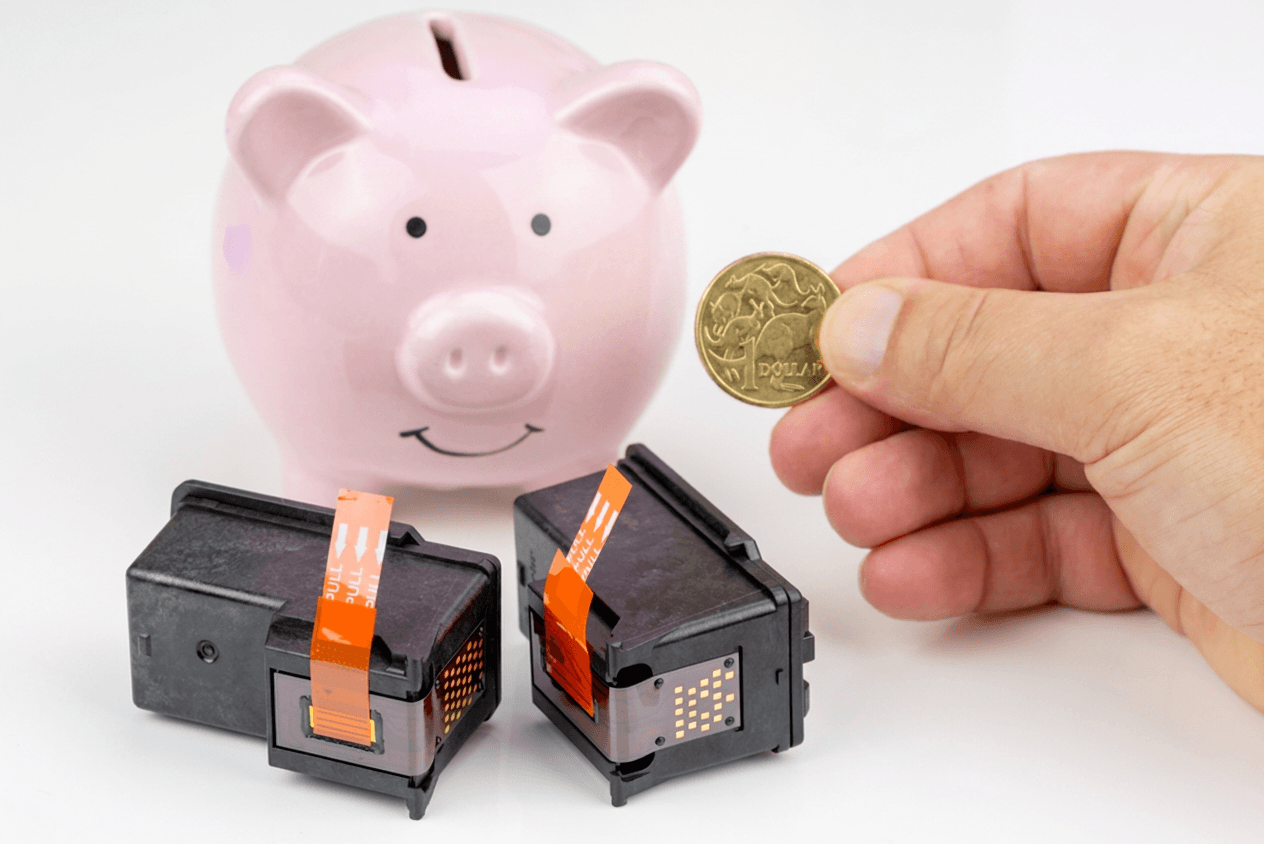
To avoid repeat issues and keep your printer performing at its best, it’s worth investing in reliable ink and toner that’s designed for your specific machine. At CartridgesDirect, you’ll find a wide range of genuine and compatible cartridges for leading printer brands, along with expert support to help you choose the right option.
Whether you’re replacing empty cartridges or simply looking to prevent future printing problems, explore their range today and keep your setup running smoothly—so when you hit print, it just works!
Read more: Essential Maintenance Tips for Sublimation Printers