Service Call
 Managed Print

How to Check Cartridge Compatibility Before Buying
When your printer runs low on ink and the cartridges need replacing, it always seems to happen at the worst possible moment. You seem to have plenty of ink and toner on any random day, but right when you need to print out that passport application or those show tickets… LOW INK WARNING.
Running out of printer ink is frustrating, but what’s even more frustrating is going through all the effort to purchase replacement cartridges only to discover that you’ve actually bought the wrong ones. Talk about a waste of time and, depending on where you’ve bought them from, a waste of money, too.
There’s no shame in admitting that you’ve bought incompatible printer cartridges before; it happens to the best of us! To save you from any further headaches, here is our guide to checking cartridge compatibility before buying.
The Short Answer: Three Ways to Check Compatibility in Under One Minute
Thankfully, checking printer cartridge compatibility is relatively quick and painless! We recommend three easy ways to confirm the type of printer cartridge you need before spending any money, all in under one minute!
Method 1 — How to Find Your Printer Model Number
You can determine which cartridges are compatible with your desktop printer by using your printer model number. That way, you can reference your printer model and stock, and make sure what you buy will fit your device.
Most manufacturers will put a model number sticker either on the back or bottom of a printer or under the front or top panels. Otherwise, it may even be located in the cartridge bay, in the digital settings, or in the printer troubleshooting menus.
Where Is the Model Number on My Printer?
Most printers will have a model number that is easy to locate either on the outer casing or in the main user menus. Here are some common locations for printer model numbers:
Back or Bottom: The most common location for model number stickers is near the power cord or on the underside of the printer.
Front or Top Panel: The model name or number is usually printed prominently on the device’s front bezel or top lid.
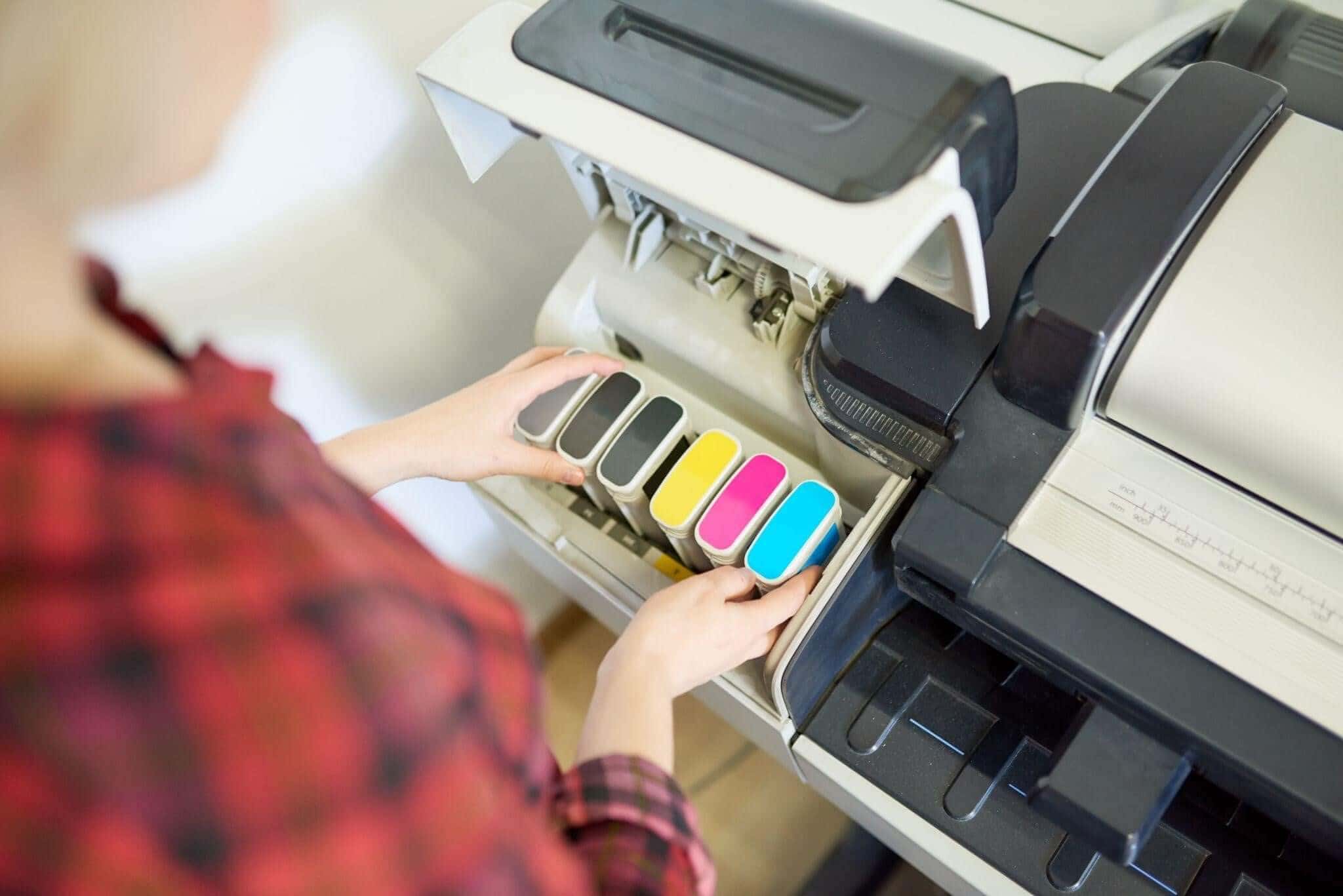
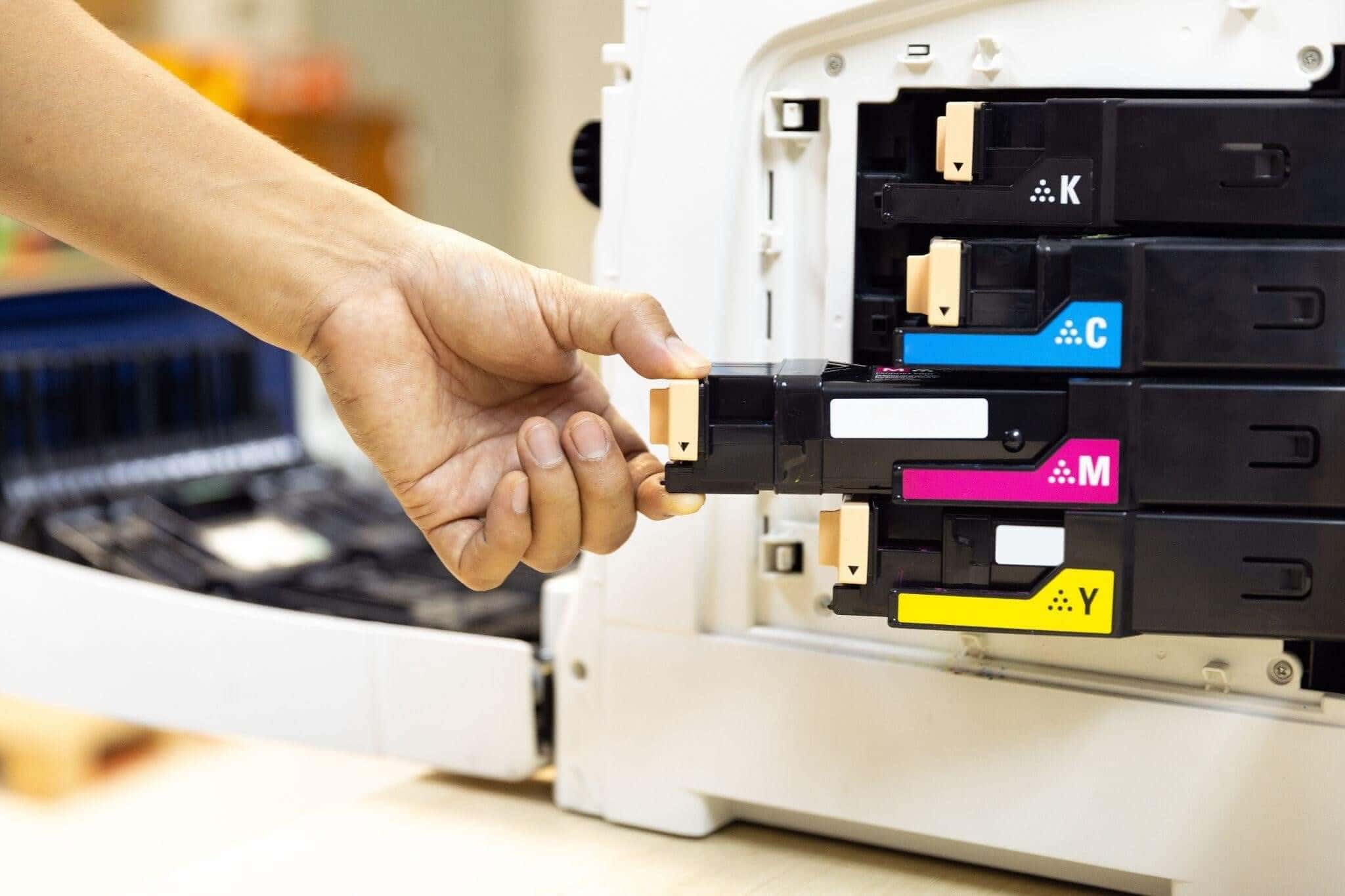
Inside the Cartridge Bay: For many inkjet and office printers, the label is placed inside the cover, right next to the ink or toner cartridges.
Printer Menu or Settings: Most devices will list the model number and the manufacturer’s details in the device settings.
By using the printer model number to check cartridge compatibility, you can also confirm which capacity yields will fit, too, such as “XL” or “X.” Higher-yield cartridges can be physically bigger, so make sure you’re buying cartridges that actually fit in the printer head!
How to Use the Model Number to Find Compatible Cartridges
Once you know your printer’s model number, you can cross-reference it with ink and toner cartridge compatibility information to determine compatibility. For example, the HP DeskJet 2820e is compatible with the 67-series of HP ink cartridges.
This compatibility will be listed on the cartridge’s packaging and online, so it’s easy to know which cartridge fits which printer when you have the model numbers.
Method 2 — How to Read the Code on Your Current Cartridge
One of the most reliable ways to know exactly which cartridge your printer requires is to check the cartridge currently inside the machine. If you have recently bought an office or home printer, this will be especially convenient when making your first compatible ink purchases to replace the printer's toner.
Where Is the Cartridge Model Number Printed?
To find the correct replacement, carefully remove your current cartridge and locate the large alphanumeric code printed on the top or front label. This identifies the brand and model series, like Canon Pixma. Letters at the end, such as “XL” or “X,” indicate a higher-capacity yield.
Be careful not to confuse the cartridge model number with any manufacturing or expiration dates, which often appear as a string of numbers.
Using the Old Cartridge Code to Shop
Just like using a printer model number to shop around for compatible ink cartridges, you can also use the ink cartridge model number to find compatible cartridges! It’s easy to search for matching model numbers both in-store and online, so try using both to ensure future stockups are quick and easy.
Method 3 — How to Use the Cartridges Direct Finder Tool
We also make it fast and easy to search for compatible ink cartridges with our online Cartridges Direct Finder Tool. Since we sell some of the most popular printer brands and first-party premium ink cartridges, we can help you check compatibility online, all in the same place.
Of course, if you ever have any trouble, you can contact us for expert advice and guidance on printing supplies and essentials!
Compatible vs Genuine Cartridges — Does It Affect Compatibility?
It is important to know the difference between compatible and genuine cartridges. Genuine cartridges are made by your printer’s manufacturer (Brother, HP, Canon, Epson, etc.), whereas compatible ink cartridges are brand-new, third-party alternatives built to fit your printer.
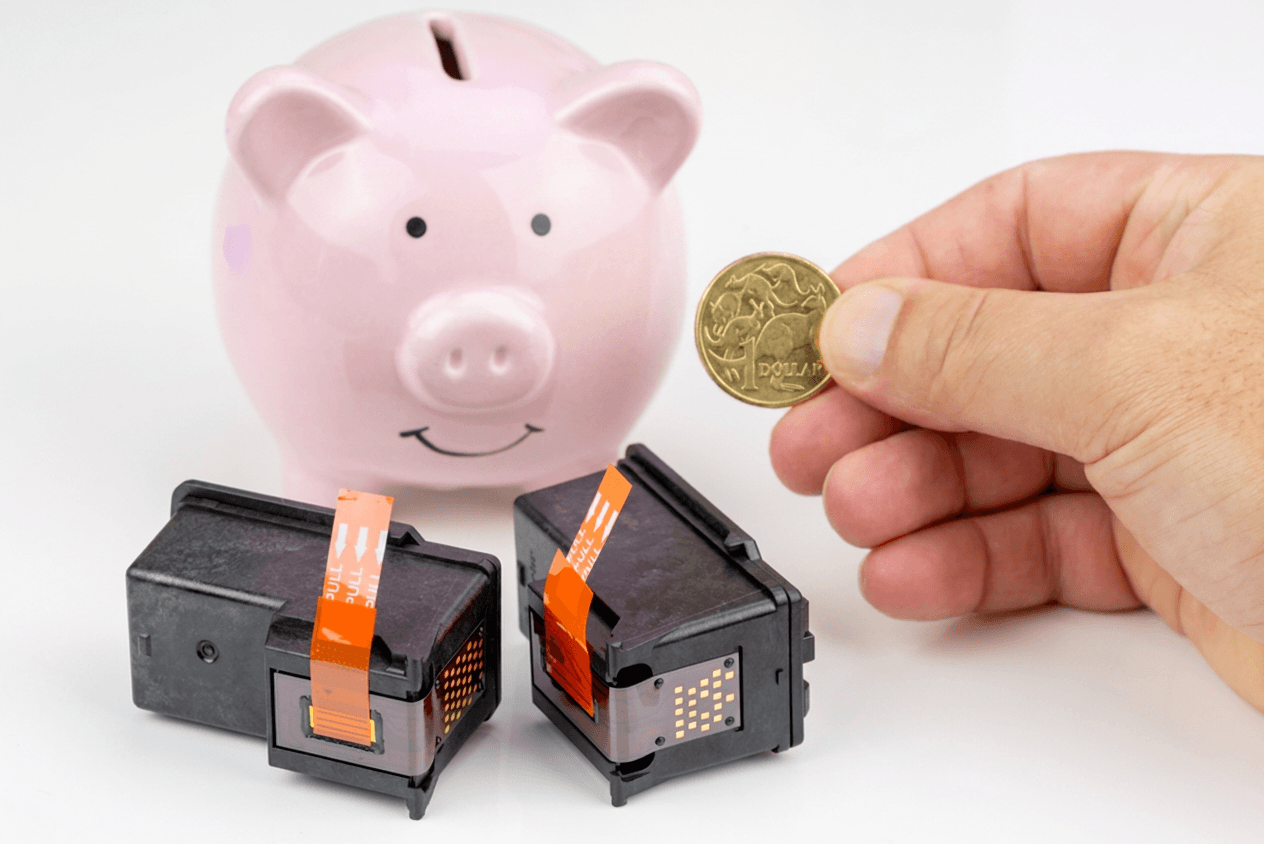
While compatible ink and toner can save you money, it can occasionally affect compatibility and printer performance, depending on the brand and your printer’s firmware. Understanding the differences between the two will help you make an informed decision and save money where you can.
FAQs
1. How do I know which ink cartridge is compatible with my printer?
You can find which ink cartridge is compatible with your printer by checking the printer model number and the ink cartridge model number, or by using the online CartridgesDirect Cartridge Finder Tool.
2. Do all ink cartridges fit all printers?
No. Different printer models are designed to work specifically with different types of ink cartridges.
3. Can a firmware update stop my compatible cartridges from working?
Sometimes, yes, a firmware update can affect printer ink cartridge compatibility and installation. For troubleshooting, check your manufacturer’s settings or even consider turning off your printer’s automatic firmware updates.
Buy the Right Cartridges the First Time at CartridgesDirect!
Taking a minute to check your printer model, confirm your existing cartridge code, or use a compatibility finder can save you time, money, and the frustration of buying the wrong ink or toner. Whether you’re printing important documents at home or keeping your office running smoothly, choosing compatible cartridges ensures reliable performance and consistent print quality.
Need replacement ink or toner? Browse our extensive online range of genuine and compatible printer cartridges, use our convenient Cartridge Finder Tool, or speak with our friendly team for expert advice at CartridgesDirect.
We’ll help you find the right cartridge for your printer, so you can print with confidence every time!