



Why Is My Printer Printing Blank Pages?
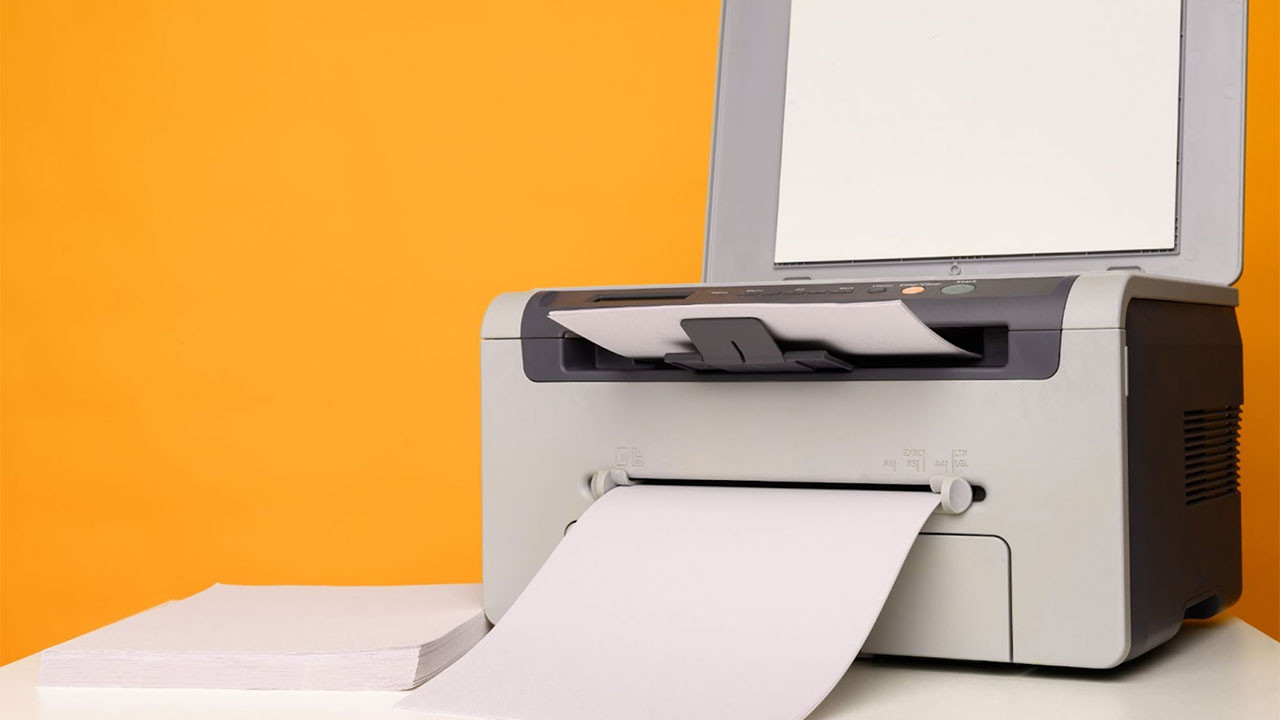
What a head scratcher — your desktop printer is printing blank pages!
Whether it’s a last-minute work document or a school assignment, blank prints are one of the most frustrating printer problems you can run into. But here’s the good news. In most cases, the cause is surprisingly simple and easy to fix.
Below, we have broken down some of the most common reasons office printers may produce blank pages, along with practical steps to help you get your printer back to doing what it’s supposed to do.
Common Causes of Blank Pages
While there are many types of home and office printers out there, often the most common reasons for printing blank pages are quite universal. Here are some of the most common mechanical and technical issues causing your printer to work incorrectly, along with some tips on how to stop your printer from printing blank pages.
Low or Empty Ink and Toner Cartridge
If your printer is repeatedly printing blank pages, then the issue may simply be that you are running out of ink! Low or empty ink and toner cartridges are some of the most common reasons a printer may be printing blank pages.
Many models of printers will not print correctly if there is less than a set minimum of ink inside the ink and toner cartridge. This capacity may not always be accurate to the reading on your device.
Make sure to check your printer's toner or ink levels. Replace empty ink cartridges with new ones, and be sure to replace them regularly, too.
Pro tip: Choose higher-yield ink cartridges to limit the number of times you need to check and replace your ink and toner!
Clogged Print Head
If your ink levels are all optimal, then the cause of your blank pages may be a mechanical issue. One of the most common mechanical issues found in home printers is a clogged print head.
A clogged print head occurs when the ink nozzles on the print head become blocked with dried-up ink. When the print head gets clogged, it can lead to patchy or erroneous printing and even entirely blank pages.
Clogged printheads can result from a lack of use or improper maintenance, but some printers have an option to let the machine check the nozzles automatically. If you need to manually check your print head, then use warm water and a soft cloth to remove any ink or debris before reattaching it to your printer.
Pro tip: If you print less frequently, then the ink will naturally dry up over time in the print head, so this could be the reason for your blank pages.
Paper Feed Problems
Another cause for blank pages may actually stem from the paper itself. Your paper feed might not be working as intended, thus producing blank pages or smudging your ink.
If your paper feed rollers are not working properly, it can mean that paper is not being fed into the printer. Sometimes this can be the result of dirt or debris building up on the rollers.
Obstructions like this can cause pages to not pass through the print head, thus missing the ink entirely. In this case, blank pages are actually a sign of internal printer issues that need to be fixed.
Pro tip: Give your rollers a quick clean regularly using a lint-free cloth, and remember to rotate the rollers to clean the entire surface.
Incorrect Print Settings
Incorrect printer settings could also be a cause for blank pages. When the settings on your printer are not configured properly, it can result in inefficient print jobs.
The configuration you choose for paper size, orientation, print quality, and network settings can all affect the outcome of your printing, and even the smallest change can lead to a blank page! Ensure that the correct settings are selected when using your device.
Additionally, verify that the printer is set as the default printer on your computer. By ensuring the print settings are accurate, you can avoid the frustration of printing blank pages.
Pro tip: Always double-check the printer settings before clicking print! This will save you from potentially locking your printer into a standby state and wasting less time.
Software or Driver Issues
Software or driver issues can also cause your printer to print blank pages. Be sure to refer to your printer’s user manual for software update information.
If you are experiencing printing issues, then here are a few troubleshooting steps you can take.
Update the printer software or drivers
Outdated or incompatible software or drivers can lead to printing issues. Check the manufacturer's website for the latest updates and install them if necessary.
Restart the printer and computer
Ah, old reliable! Sometimes, a simple restart can resolve your software or driver conflicts and your blank pages.
Check for error messages
Error messages on your computer or printer display can provide valuable information about all sorts of issues. Take note of any error codes or messages you see and search online for possible solutions.
Reinstall the printer software
If updating the software or drivers does not seem to solve the problem, then try uninstalling and reinstalling the printer software. This can help fix any corrupted files or settings.
If these steps still do not resolve your blank page, then it may be necessary to contact professional support for further assistance.
Get Back to Printing, Without the Headaches
If you’ve worked through the common causes above and your printer is still producing blank pages, then chances are the issue comes back to one thing: unreliable, low-quality, or depleted ink and toner.
Before you give up on your printer entirely, make sure you’re using the right compatible ink cartridges for your model.
At CartridgesDirect, you’ll find a huge range of high-quality ink and toner cartridges for leading printer brands, all available online and delivered straight to your door. Shop ink and toner at CartridgesDirect today and get your printer back to producing crisp, reliable prints!
Explore Popular Articles
-
OKI MC554dnw vs. Competitors: 2026 Office Printer Comparison
30th Jan 2026OKI MC554dnw vs. Competitors: 2026 Office Printer Comparison The OKI MC554dnw is designed to replac
-
Essential Maintenance Tips for Sublimation Printers
23rd Jan 2026Sublimation printers are powerful tools capable of creating vibrant, long-lasting prints. But like a
-
Why Is My Printer Printing Blank Pages?
22nd Jan 2026What a head scratcher — your desktop printer is printing blank pages! Whether it’s a last-minute wor